Help
Status screens
When a key or dial cannot show a current reading, it shows a two-line status screen. The first line names the condition; the second names the next step. Troubleshooting has the full repair path for each screen.
A status screen never changes saved settings. The selected reading, its label, colors and every other setting stay as they were. Pick a sensor clears when you pick a reading, and Sensor missing when this Mac reports the saved reading again or you pick another. Bridge failed and Needs macOS last until the plugin restarts. Every other screen clears by itself on the first read that produces a current reading.
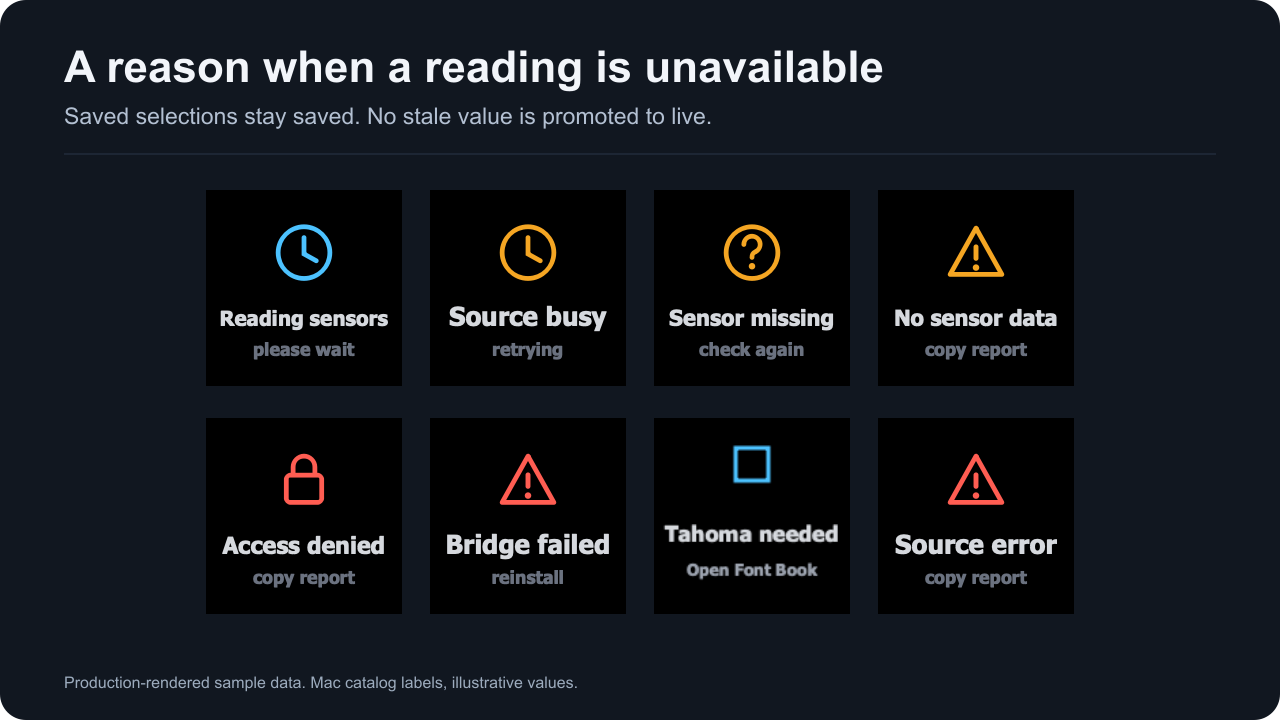
Production-rendered status screens with sample scenarios. Status screens use fixed colors, so the theme does not change them.
Key screens
| Key shows | Looks like | What it means | What to do |
|---|---|---|---|
| Reading sensors / please wait | Blue clock | No reading has arrived since reading started: the first read is still out. It also returns if every reading lapses or fails before the first SMC read of that session has answered. | Wait for the first read. If it has still not finished after 15 seconds, the key changes to Source busy. |
| Source busy / retrying | Amber clock | 15 seconds after reading started, the first read has still not finished: no system counter read has succeeded and at least one source has not answered. | Choose Check again. If it stays, choose Copy support report under Advanced, Support first, then quit and reopen the Stream Deck app, which restarts the plugin. |
| No sensor data / copy report | Amber warning triangle | Both sources answered, but no reading is current: every reading failed, was withheld or expired. It can appear briefly after the Mac wakes from a sleep longer than 15 seconds. | Choose Check again. If it stays, choose Copy support report under Advanced, Support and file an issue. |
| Tahoma needed / Open Font Book | Fixed image: blue square outline above the two lines | macOS did not return Tahoma Bold. Readings are hidden until it is available. The screen is stored as pixels, so it draws without the font. | Install Tahoma Bold in Font Book, or turn it on. The screen clears on the next read; Check again only makes that read happen at once. See Keys show Tahoma needed. |
| Bridge failed / reinstall | Red warning triangle | The native reader for this processor could not be used. The result is kept until the plugin restarts. | Quit and reopen Stream Deck. If it persists, remove Mac Sensors and install it again. See Removing and Keys show Bridge failed. |
| Source error / copy report | Red warning triangle | A read failed in a way no other screen covers. Known causes: the native reader’s clock returned no usable time, or both sources answered but the system counter read failed, so the font check that runs with it could not run. | Choose Check again. If it stays, copy a support report first, then quit and reopen the Stream Deck app, and file an issue. |
| Needs macOS / check requirements | Red warning triangle | The Node runtime that started the plugin is not macOS on arm64 or x86_64. With the runtime the Stream Deck app supplies, this screen is not expected. | Check Installation and requirements, then copy a support report. |
| Pick a sensor / in settings | Blue target | The key works, but no reading is selected yet. | Open the key’s settings, type in the Reading box and choose a reading. |
| Sensor missing / pick again | Amber question mark | A reading is selected, but this Mac does not report it right now. | Open the key’s settings. The panel says whether this Mac reports the reading. See Keys show Sensor missing. |
The three colors are blue #4cc2ff (waiting or setup), amber #f5a623 (attention) and red #ff5d52 (failure).
Reading sensors, Source busy, No sensor data and Source error come from the two data sources (see Data sources). Pick a sensor and Sensor missing are about this key’s selection; other readings keep working. Bridge failed and Needs macOS are about the installation and the runtime. Tahoma needed is about the font prerequisite.
Sensor missing can be temporary: a reading whose last read failed shows it, and so do CPU usage and the transfer rates for about a quarter second after reading starts. On a key with two to four readings, the screen appears only when every configured reading is missing; a single missing row shows its label, or Sensor missing, with a placeholder dash.
Detail tiles show the same screens. The Back tile keeps its return arrow on every status screen, including the fixed Tahoma needed image.
One screen is detail-only. After a plugin restart while a detail page is showing, its reading tiles show No detail / selected with a blue target, and the Back tile shows a plain Back with a left chevron. Press Back, then open details again (Detail view problems).
Screens 1.0.1 does not report
Two more screens are defined in the plugin’s status set, but no read in version 1.0.1 reports either of them.
| Screen | Looks like | Panel sentence | In 1.0.1 |
|---|---|---|---|
| Access denied / copy report | Red lock | “macOS denied a read. Choose Copy support report under Advanced, Support.” | When the SMC service cannot be opened, the SMC readings are left out, the system counters keep working, and the support report records the error under sourceErrors. |
| Not updating / check again | Amber clock | “No recent measurement is available. Choose Check again.” | A reading older than 15 seconds is removed instead of being held, so no source is ever reported as not updating. |
If you see either of them, copy a support report and file an issue.
Dial screens (Stream Deck +)
Dials show the same states in the touchscreen’s title and value lines:
| Dial title | Dial value | Notes |
|---|---|---|
| Reading sensors | please wait | |
| Source busy | retrying | |
| No sensor data | copy report | |
| Tahoma needed | Open Font Book | Fixed image, like the key screen |
| Bridge failed | reinstall | |
| Source error | copy report | |
| Needs macOS | check requirements | |
| Mac Sensors | rotate to pick | No reading selected yet; the bottom line says “or use the settings panel” |
| Sensor missing | waiting | The saved reading is not reported right now; the bottom line says “reselect in settings” |
While a dial shows a status screen or Sensor missing / waiting, turning it does not change its reading. A temporary dropout therefore cannot move the dial off the saved reading, and the dial recovers by itself when the reading returns. A small pinned or cycle paused label on a live dial is not a status screen; see Dial controls and presets.
Checks of these faces and of dial gestures on a physical Stream Deck + are pending; see Hardware compatibility.
In the settings panel
The header of a Sensor Reading or Sensor Dial panel names the data state on its last line:
| Header says | When |
|---|---|
| Connecting to the plugin | The panel has opened and the plugin has not answered yet |
| The plugin is not responding | No answer came within 3 seconds |
| No sensor data | The key or dial shows any status screen, including Reading sensors and Tahoma needed; the message below names the cause |
| Mac sensors ready | Readings are available and no reading is selected yet |
| Saved reading not found | The selected reading is missing |
| Live · Mac sensors | The selected reading has a current value |
When there is something to fix, a message sits right under the header with the fix as a button:
| The message is about | It says | Buttons |
|---|---|---|
| A status screen | That screen’s panel sentence (below), then “Your reading and every setting stay saved. Display settings can still be changed; they apply when data returns.” With no reading selected, the second line is “Readings appear under Reading once data returns.” | Check again, Sensor setup |
| The selected reading is missing | “The key keeps the saved reading with its label and colors. This Mac does not report it right now; it shows again when this Mac reports it.” (On a dial it says “The dial keeps”.) | Reload sensor list, Pick another reading |
| The plugin answered with an empty reading list | “This Mac reports no readings right now.” | Sensor setup |
| The plugin is not answering the panel | “The Mac Sensors plugin is not answering this panel. Settings you change here are still saved; restarting the Stream Deck app restarts the plugin.” | None |
Panel sentences for each status screen:
| Screen | Panel sentence |
|---|---|
| Reading sensors | “Readings appear after the first successful sample.” |
| Source busy | “The source is busy. Choose Check again to request another check.” |
| No sensor data | “No readable sensors were found. Choose Copy support report under Advanced, Support.” |
| Tahoma needed | “Install Tahoma Bold in Font Book, then choose Check again.” |
| Bridge failed | “The native reader could not load. Reinstall Mac Sensors, then choose Copy support report if it still fails.” |
| Source error | “The sensor source could not be read. Choose Copy support report under Advanced, Support.” |
| Needs macOS | “This build needs a supported Mac and app version. Open Installation and requirements in the docs.” |
What the buttons do:
- Check again and Reload sensor list ask the plugin for a new read and a fresh answer, while a Sensor Reading key, Sensor Dial or detail tile is visible. If the answer is the same problem, one line says so with the time and your Read every value, for example “Checked again at 14:02:31: no change yet. The plugin also reads sensors every 1 s on its own.”
- Sensor setup opens the Sensor setup steps under Advanced, Connection: pick a reading under Reading; if no readings appear, choose Check again or Copy support report under Advanced, Support; if Tahoma is missing, install Tahoma Bold in Font Book and choose Check again.
- Pick another reading moves to the Reading search box. Nothing is saved until you choose a reading.
The reload button beside the Reading search box, labeled “Reload the sensor list”, reloads the list from the latest read without starting a new one.
Recovery
A status screen does not require removing the key. While a Sensor Reading key (including the Back tile), Sensor Dial or detail tile is visible, the plugin keeps reading at the Read every interval:
- Every read asks both sources again, so a source that failed is asked again on the next read while the other keeps serving. One exception: SMC readings wait for the first successful system counter read, which carries the font check. Until then keys show Source error, or Source busy if a read is still out after 15 seconds.
- If the SMC connection breaks, the next read opens it again.
- The font check runs on every system counter read, so Tahoma needed clears on the first read after Tahoma Bold is available, without Check again.
- A read that starts while a status screen shows never waits more than 100 ms for a slow source, so readings return at most 100 ms after their own source answers.
- A page you return to after no Sensor Reading key, Sensor Dial or detail tile was visible anywhere for 2 seconds starts reading again and shows Reading sensors until its first read completes. A page change, opening sensor details or pressing Back inside those 2 seconds shows readings at once (When reading starts and stops).
Bridge failed and Needs macOS do not recover by themselves; the result is kept for the life of the plugin process. For Bridge failed, quit and reopen Stream Deck; a load failure alone does not establish whether a file is damaged, missing or blocked. Needs macOS means the Node runtime is not a supported macOS one, which a restart does not change; see Installation and requirements.
Where to go next
- Troubleshooting has the full repair path for each screen.
- Data sources explains the two sources behind these screens, freshness and sleep.
- FAQ and privacy answers common questions about readings and support reports.