Start with one sensor on a Stream Deck key. You can add layouts, themes and dials after that.
Before you start. This is a Windows-only plugin that reads a running copy of HWiNFO. You need Windows 10 or later, Stream Deck software 6.9+, and HWiNFO publishing data on either Shared Memory Support (preferred) or Gadget reporting. If HWiNFO isn’t running yet, do that first: see Install & requirements.
1. Install the plugin
Install the plugin from the Elgato Marketplace, or double-click the .streamDeckPlugin file from GitHub Releases. The Stream Deck app asks you to confirm the install, then adds an HWiNFO Sensors category to the actions list on the right.
2. Drag “Sensor Reading” onto a key
In the actions list, open HWiNFO Sensors and drag Sensor Reading onto any empty key.
With a readable source, the key shows Pick a sensor / in settings on a black background. The settings panel opens below the canvas. If the key shows a source error instead, follow Status screens.
First run? If HWiNFO isn’t publishing yet, the message under the panel’s header says so and offers HWiNFO setup steps, which opens the steps under Advanced → Connection: Shared Memory Support (the free version switches it off after 12 hours) or HWiNFO Gadget reporting, which has no time limit. Check again asks the plugin for a fresh answer; the plugin also keeps reading HWiNFO on its own. What each message means: Status screens.
3. Pick a reading
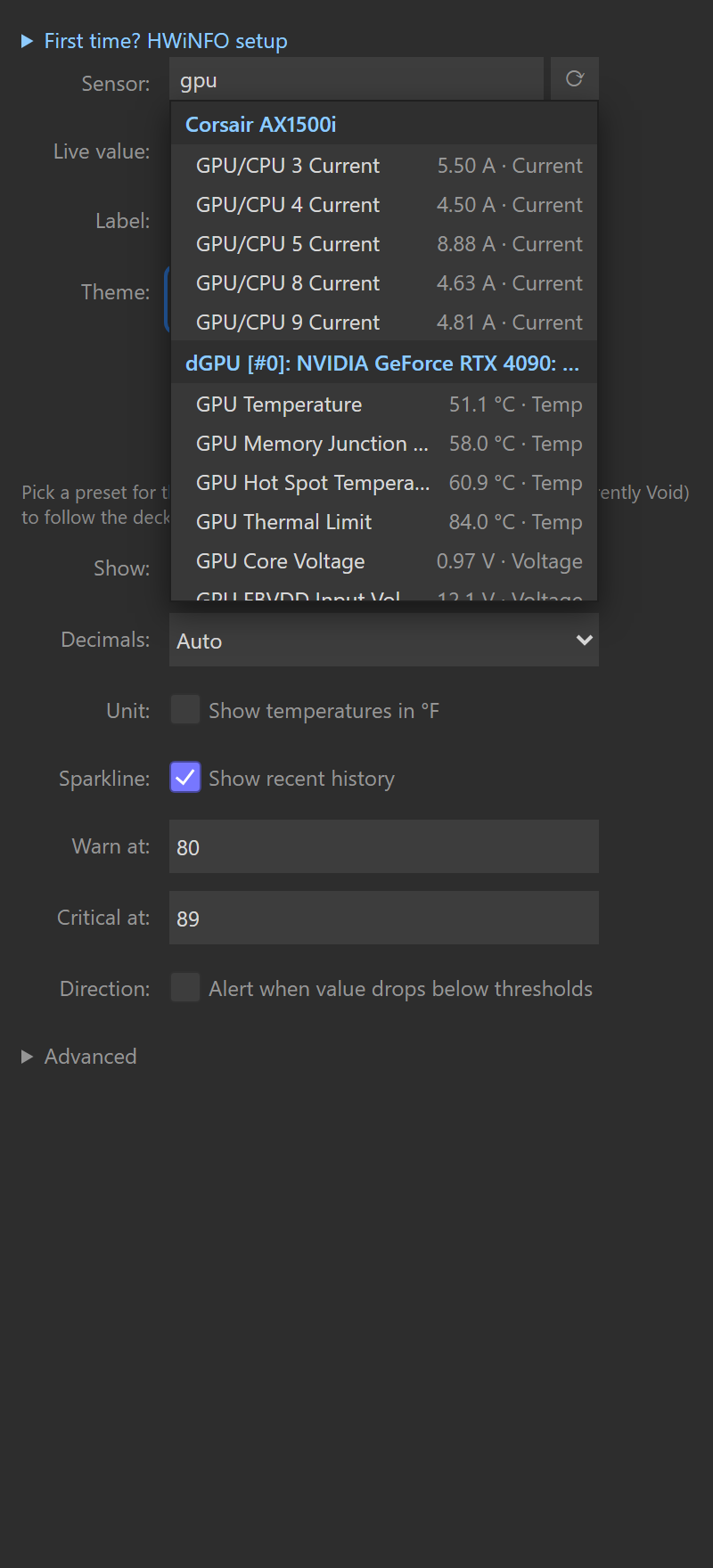
Click the Reading search box (at the top of the panel’s Reading section) to open the picker. It lists every reading HWiNFO is currently publishing:
- Grouped by source: CPU, GPU, drives, motherboard and so on, under headings that match HWiNFO’s own sensor names.
- Live values: each row shows the reading’s value, unit, and type (Temp, Fan, Power…), captured when the list loads; the ⟳ button re-reads them.
- Type to filter: arrow keys browse, Enter picks, and Tab or a click elsewhere closes without changing anything (the Stream Deck app keeps the Escape key for itself). Search is multi-token:
cpu diematches a row only if it contains both words, in any order, across the group name and the label. Sogpu hotnarrows straight to the GPU hotspot temperature. - ⟳ refresh: reload the list if you just enabled a sensor in HWiNFO and want it to appear.
Click a row to select it. The panel’s header then names the reading and its source, shows the key’s face exactly as the plugin just drew it, and reports Live with the data source (for example Live · Shared Memory); the key on your deck switches from Pick a sensor to the live number. HWiNFO’s min/max/average require Shared Memory: since 1.7, Gadget historical modes show N/A, and Age unknown appears until a value change establishes freshness. See what changed from 1.6.
That’s the whole loop: drag, pick, done. The plugin reads once a second by default; HWiNFO updates at its own rate (2 seconds by default). Change the plugin interval with Read every under Advanced → Connection. Shared Memory selections use HWiNFO’s reading identity, so reordering the list does not change the selection; Gadget uses source names and reading labels. Switching between providers requires explicit links (since 1.7); see data sources.
4. Find the rest of the settings
Under the header, the theme strip picks this key’s theme; Default follows the shared theme. Below it, Reading and Display start open, and Alerts, Press and Advanced start folded, each folded title summarizing what it holds. The two chevron buttons at the top right of the header open or fold every section, and the panel keeps your folds for the next key until the Stream Deck app restarts.
Where to go next
Choose a guide for the next setting you want to change:
- Sensor Reading (keys). Every key setting: Label on the key, Readings on this key (one reading, two stacked, three rows, or a quad grid of four), Value shown (current value, minimum, maximum or average), Decimals, the °F box, Graph under the value (sparkline, bar or ring), and what A press does.
- Sensor details (drill-down). A key press can instead open a full page of related readings, with the pressed key staying live as the Back tile. One bundled view per deck type, installed on first use.
- Sensor Dial (Stream Deck +). The dial/touchscreen action for the Stream Deck + and + XL: rotate-to-switch, the rotation list, auto cycle, push-to-reset, and a session range bar.
- Dial controls & presets. The Legacy, Elite and Custom gesture presets, rotation groups, touch zones, pause/pin, A stats reset clears, and the HWiNFO Control key action that drives dials from any key or pedal.
- Themes. The seven presets (Void, Graphite, Ultraviolet, Midnight, Forest, Ember, Paper), Default versus a key’s own theme, and Accent colors.
- Thresholds & alerts. Warn at / Critical at and the Alert when the value drops to or below these numbers checkbox for fan RPM, free space, and other alert-when-low readings.
- Data sources. Shared Memory vs. Gadget registry, what each gives you, and the automatic fallback.
- Status screens. What “Start HWiNFO”, “Shared Memory is off”, “Not updating”, “Access denied”, and “Sensor missing” mean, what the settings panel says about them, and how to fix each.
- Hardware compatibility. What is physically verified (the Stream Deck + XL), what is SDK simulated, and how to report your own device.